PDF Reader: Turn Your PDFs Into Anki Cards
The PDF Reader lets you read a textbook or lecture PDF in your dashboard and hand the parts that matter straight to your AI. You highlight, take notes, and save snapshots of tricky pages. Then you ask your AI to make cards from them. It reads exactly what you have open, so you don’t copy and paste anything.
The short version
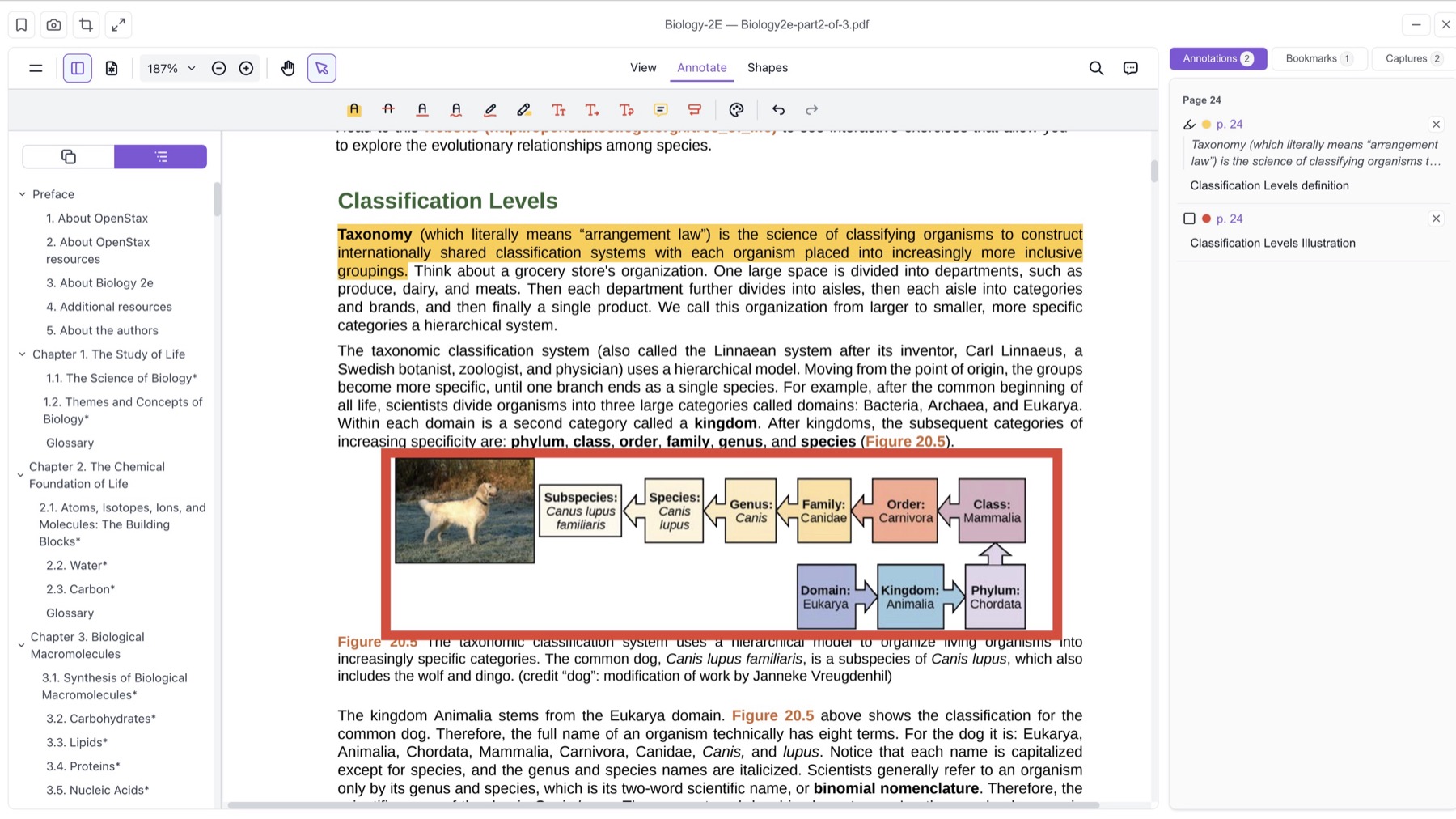
Each PDF lives in a PDF project: a folder in your Media Library that holds the PDF and the images you save from it. You open the project, and the PDF opens in a full-screen reader with tools for highlighting, notes, bookmarks, and captures.
While the reader is open, your AI can look at it through four Studio tools. It can see which page you’re on, read any page as text or as a picture, list your highlights and notes, and fetch the images you saved. It only reads. It can’t change your PDF or your notes.
Getting started
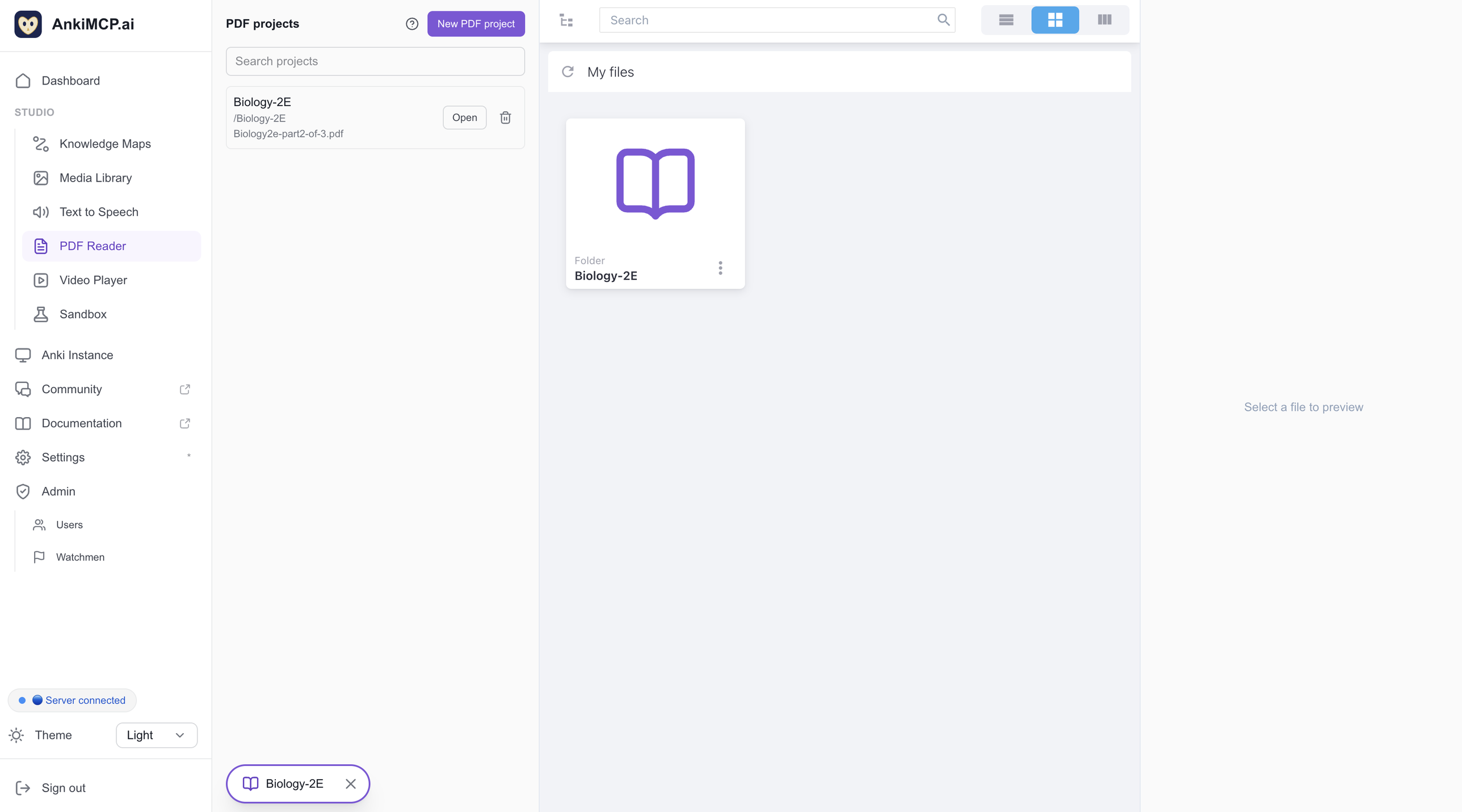
- In the dashboard sidebar, under the Studio group, click PDF Reader. On the left you’ll see the “PDF projects” list. On the right is your Media Library.
- In the Media Library, go to the folder where the project should live (the top level is fine). Click New PDF project, type a name, and confirm. Studio creates a folder with that name. You can’t make a project inside another project, so the button is turned off there.
- The new project says “This project has no PDF yet.” Click Upload a PDF and pick the file from your computer. It’s uploaded into the project folder. If a file with the same name is already there, you get a copy with a slightly different name.
- The project now shows its name, its folder, and the PDF’s file name. Click Open, and the reader fills the screen.
Got lots of projects? Type in the Search projects box to filter the list.
You can rename or move a project’s folder later. It stays the same project, with all its notes.
Deleting a project
Each project row has a Delete button (the trash icon, right after Open). It asks “Delete project?” and warns: “This deletes the folder with its files, captures, subtitles and annotations.” Confirm, and the whole project folder is removed from your Media Library — the PDF, your captures, and all your notes — and the storage is freed. There’s no undo.
If that project’s reader is open or minimized, the delete is refused: “Close the reader for this project first.” Close it, then try again. Deleting the folder straight from the Media Library file browser also deletes the project, but without this warning.
The reader
The toolbar
The toolbar is one line with three parts:
- Left: Bookmark, Capture page, Capture area, and Fullscreen.
- Middle: the title, shown as “Project — file name”.
- Right: Minimize reader and Close reader.
The viewer’s own menu also has Print and Export.
Marking up the page
The reader handles the usual kinds of PDF markup:
- Highlight, underline, strikeout, and squiggly lines on text
- Freehand ink for drawing or circling things by hand
- Squares and circles
- Text boxes written right on the page
- Sticky notes
Every annotation has a one-line comment you can edit from the side pane — “definition”, “diagram for exam”, “ask about this”. Your AI sees these comments, so they’re a good way to tell it what to make cards from.
Your notes are saved to your AnkiMCP account, per document. They aren’t written into the PDF file itself. If you have the same PDF open in two browser tabs, notes you add in one show up in the other right away.
Bookmarks
Click Bookmark to bookmark the page you’re on. Each click adds a new bookmark, and you remove them from the Bookmarks list in the side pane.
Captures
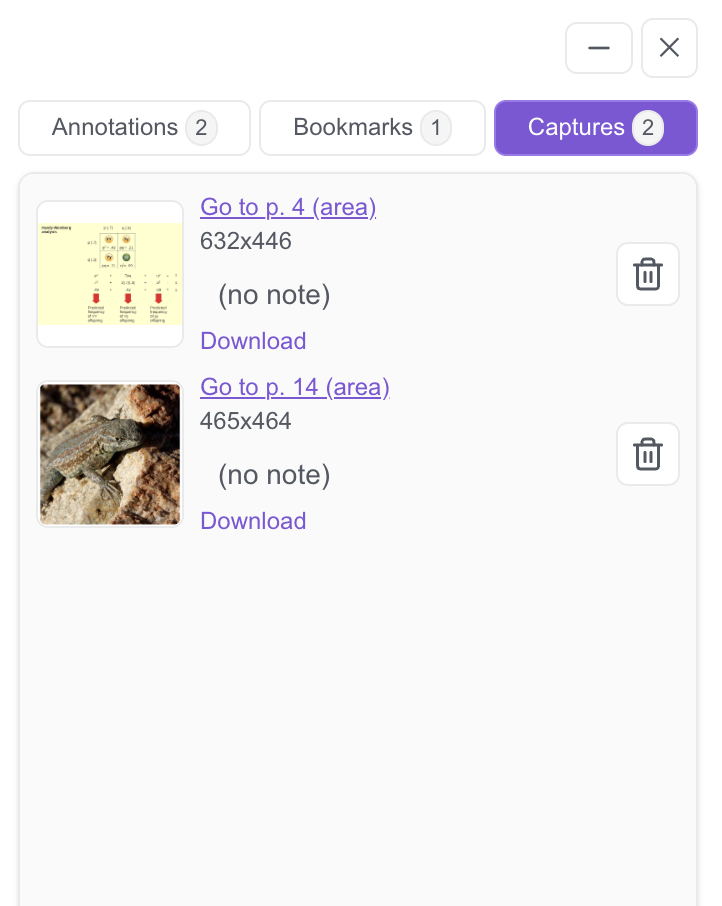
A capture is an image you save from the PDF. Capture page saves the whole page. Capture area lets you cut out just one part, like a diagram or a table.
Captures are saved as image files in a captures/ folder inside the project. They’re listed in the Captures tab and never drawn on the page itself.
You can give each capture a one-line comment, like “exam” or “review this”. Click the comment line to edit it. Each capture also has a Download link. If you delete a capture by mistake, you can undo it while the reader is still open. The image file is removed when you close the reader.
The side pane
The side pane has three tabs: Annotations, Bookmarks, and Captures. Each tab shows a count. Click an annotation on the page, and the pane jumps to the right tab.
Fullscreen
Fullscreen puts the whole reader in fullscreen, including the page, the side pane, and the toolbar. If your browser doesn’t allow fullscreen, the button is hidden.
Minimize and switch between readers
Minimize reader keeps the reader running while you use other parts of the dashboard. It shrinks to a small chip at the bottom left, next to the sidebar. Hover over the chip to see the project name, “PDF project”, the folder, and the file name. Click the chip to bring the reader back, or click its ✕ to close it.
You can have several readers open, one per project, and you can mix PDF and video projects. Only one shows at a time. Opening another project minimizes the one you were looking at. Clicking Open on a project that’s already open just brings it back.
Closing
Click ✕, or click the ✕ on a chip. The reader asks “Close reader?” before it closes. Minimizing never asks.
The reader follows the dashboard’s light or dark theme. Switch it in the sidebar. The reader has no theme switch of its own.
Working with your AI
To let your AI see the reader, add the Studio MCP URL to Claude or ChatGPT. Find it on the Studio page under “Build with your AI” by clicking Copy Studio MCP URL. It’s separate from the tunnel URL that connects your AI to Anki. See Anki Studio for how the two fit together.
The reader has to be open in a dashboard tab in your browser. Your AI reads what you have open there, and nothing else. It can’t open a PDF on its own, and it can’t change anything.
If you have several readers open, the AI reads the active one: the reader on screen, or, if they’re all minimized, the one you used last. When everything is minimized, the active reader’s chip is filled in, and the others are outlined — so you can see at a glance which one your AI is looking at.
The four tools
pdf_reader_statusanswers “what am I reading?” It reports the project, the file name, the page you’re on out of the total, the zoom level, and the PDF’s details: title, author, subject, keywords, and dates.pdf_reader_get_pagereads one page. It can get the page in one of three formats:- text is the default and the cheapest. It’s best for ordinary reading.
- image is a picture of the page. Use it for figures, tables, and formulas.
- pdf is a one-page PDF. It only works in AI apps that accept PDF files.
By default the page comes back clean, without your markup. When it asks for an image, your AI can turn on
annotationsto draw your highlights, shapes, ink, text boxes, and note markers on it. If a page has no text (a scanned page, for example), your AI is told to ask for an image instead.pdf_reader_list_annotationslists your highlights and notes, each with its page, type, and your comment. It can narrow the list to a range of pages, to one kind of annotation, or both. It returns 50 at a time by default (up to 200) and can fetch more in pages.pdf_reader_get_capturefetches one of your captures, along with its page, when you saved it, and your comment.
Things to ask
What am I reading right now?
Explain the diagram on page 12.
Make 5 cards from page 4.
Turn my highlights in chapter 2 (pages 20–35) into cards.
Make a card from the capture I commented “exam”.
Make cards from every highlight I commented “definition”.
Limits and plans
| Free | Paid plan (Plus or Pro) | |
|---|---|---|
| PDF projects | 1 | No plan limit |
Everyone has a hard cap of 100 projects. Project names can be up to 200 characters. If you downgrade, you keep the projects you already have. On the Free plan, once you have one PDF project, the New PDF project button is turned off.
PDFs are stored in your Media Library and count against your storage like any other file. These are the current limits and may change:
- Total storage: 30 MB on Free, 1 GB on Plus, 3 GB on Pro.
- One PDF: up to 100 MB. On Free, your 30 MB of total storage is the real ceiling.
A few more limits:
- Annotations: up to 2,000 per document, each up to 256 KB.
- AI answers: each answer to your AI is capped at about 700 KB. Page images are shrunk step by step to fit, down to 0.75× scale. Your AI only gets a “too large” message if even the smallest version doesn’t fit. Then it can ask for text instead.
Example: from highlighted chapter to cards
Say you’re a med student working through a pharmacology PDF.
Open the project and read chapter 2, pages 20–35. Highlight the key facts as you go. On page 27 there’s a dense table, so you use Capture area on it and comment it “exam”.
Leave the reader open, or minimize it, and switch to your AI chat.
Ask:
Turn my highlights in chapter 2 (pages 20–35) into cards. Then make a card from the capture I commented “exam”.
Your AI lists your highlights on those pages, reading the pages too if it needs more context. Then it fetches the table capture and drafts the cards.
To get the cards into Anki, your AI uses your Anki connection, the same way it adds any card. Want to check them first? Ask it to draft them in the Sandbox before they go to your deck.
Common questions
Can my AI open a PDF for me? No. You open the project in the reader, and the AI reads what’s open. It can’t open, edit, or annotate anything.
What if nothing is open? If no reader is open, or no dashboard tab is open at all, your AI gets: “No PDF or video is open in the studio Reader. Open a PDF or video project in the Reader page first.” Open the project and ask again.
What if a video is open instead? The PDF tools don’t read videos. Your AI gets: “The studio Reader has a video open, which this tool does not read. Use the video_reader_ tools for it.”* Show the PDF reader, or use the Video Player tools.
What if the AI asks for a page that doesn’t exist? It’s told how many pages there are, for example: “Page 13 does not exist; the document has 12 pages.”
The AI says the reader didn’t answer in time. That means your browser was too slow to reply: “The studio Reader in the user’s browser did not answer in time. Please try again.” Make sure the dashboard tab is still open, then ask again.
Are my notes saved inside the PDF? No. They’re saved to your AnkiMCP account, per document. If you delete the project’s PDF, or your account, its notes are deleted too.
Can I open a different PDF inside the reader? Not today. Each project reads its own PDF. To read another one, make another project.
What browser do I need? A modern browser. The PDF engine needs WebAssembly.
The reader closed by itself. If a reader crashes, only that reader closes, and you see “The reader failed and was closed”. Open the project again to continue.
Next steps
- Media Library — where your PDFs and captures are stored.
- Sandbox — draft cards from your PDF with your AI and see them render before they reach your deck.
- Video Player — the same idea for lecture videos on your computer.
- PDF to Anki cards — the other ways to get cards out of a PDF, including attaching it straight in the chat.
The screenshots on this page show Biology 2e by Mary Ann Clark, Jung Choi and Matthew Douglas, OpenStax (2018), licensed under CC BY 4.0. Download it for free at openstax.org/details/books/biology-2e.
Disclaimer: “Anki” is a registered trademark of Ankitects Pty Ltd. AnkiMCP is an independent, community-built project and is not affiliated with, endorsed by, or sponsored by Ankitects. MCP is an open standard originated by Anthropic; AnkiMCP is likewise not affiliated with or endorsed by Anthropic.