Text to Speech: Make Card Audio From Your Chat
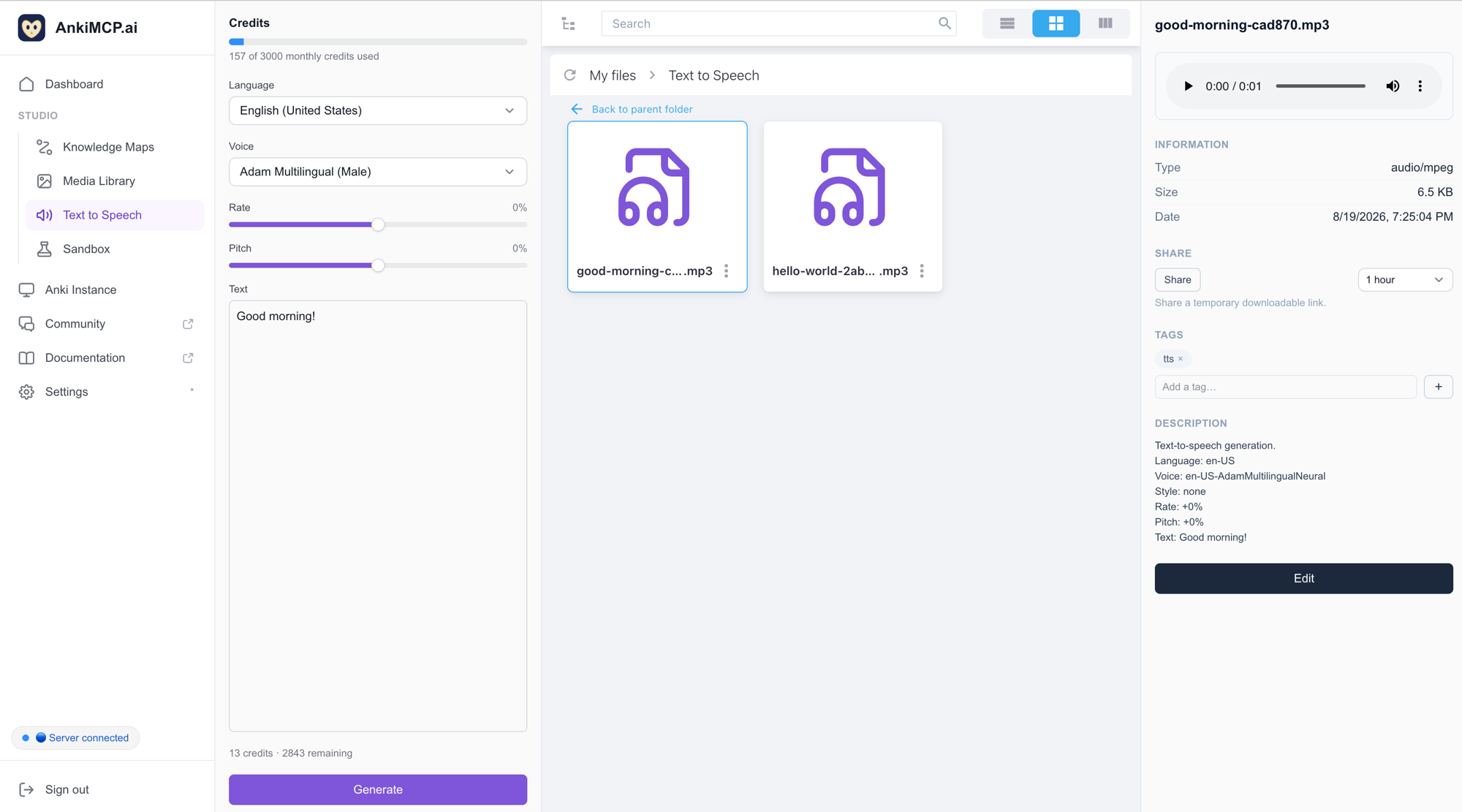
Anki Studio turns text into spoken audio for your cards, straight from your AI chat. You ask in plain words, your AI picks a voice and generates the sound, and the mp3 lands in your Media Library. No separate app, no files to move by hand.
The short version
Studio gives your AI three text-to-speech tools. Together they answer three questions: which voices exist, how much you can spend, and please make this audio. The audio is made by Microsoft Azure’s neural voices — the same kind of natural, human-sounding voices you hear in modern narration.
Every generation costs credits, and each plan includes a monthly allowance. A generation that fails costs you nothing.
The three tools
Your AI reaches these through the Studio MCP endpoint, the same way it reaches the rest of Anki Studio.
tts_list_voices— lists the voices it can use. Each voice has a short name (likeen-US-AvaNeural), a language, a gender, and any expressive styles it supports. Your AI can filter by language, so it doesn’t pull hundreds of voices into the conversation.tts_get_quota— reports your tier, your monthly allowance, how much you’ve used, and how much is left. Ask your AI to check this before a big batch, so you learn the cost before you start rather than halfway through.tts_generate— makes the audio. It takes your text, a language, and a voice, plus optional style, rate, and pitch. It writes one mp3 into the media library folder you choose and replies with the saved file’s path.
The voices
The catalog is Azure’s standard neural voices, in many languages and regional variants. Many voices also support expressive styles — cheerful, sad, whispering, newscast, and others, depending on the voice.
Two optional adjustments sit on top: rate changes speaking speed (up to 40% faster or slower) and pitch raises or lowers the voice (up to 30%). Leave both alone and you get the voice’s natural delivery.
One rule matters more than the rest: the voice must speak the language of your text. A near miss still makes audio — the words come out mispronounced, and you’re billed for them. A far miss makes nothing at all: when the voice simply can’t speak your text, such as Hebrew text in an English voice, the speech service returns silence. The tool then refuses the request and charges you nothing. Set the language option to the voice’s own language too.
How billing works
One credit is one billed character. The count follows Azure’s own rules:
- Letters, spaces, and punctuation all count.
- A Chinese character counts as two — including kanji in Japanese and hanja in Korean.
- The markup that a style, rate, or pitch option adds is counted too. Plain text is the cheapest.
Each plan includes a monthly allowance. These are the current allowances and may change:
| Plan | Credits per month |
|---|---|
| Free | 100 |
| Plus ($5/month) | 1,000 |
| Pro ($15/month) | 3,000 |
The allowance resets at the start of each calendar month, in UTC. Unused credits don’t carry over into the next month.
Failed generations are free — with one exception, in the questions below. If you’re short on credits, if the voice or style doesn’t exist, or if the voice can’t speak your text, the request is refused with a clear message and nothing is charged. Credits are only spent once the speech service has actually produced the audio.
Where the file goes
Every generation is an mp3 — the only output format — saved in your media library, in the folder you name (or the root if you name none). The file is tagged tts and carries a description with the text, voice, and settings used, so you can find it or reproduce it later. A very long text is trimmed in that description.
Two media library limits apply, the same ones as for anything you upload. A single file can be at most 2 MiB. The audio also counts against your total storage — 30 MiB on the free plan, 1 GiB on a paid plan. See Media Library for the full picture.
If a name is already taken, the library saves the file under a slightly different name and tells your AI the real path. So always trust the path in the reply.
How the audio gets into Anki
The media library is cloud storage, not your Anki collection. To put a clip on a real card, your AI does the same thing it does for any web audio. First it opens the file to get a temporary link. Then it uses your Anki connection to store the file in your collection and write Anki’s [sound:hola.mp3] tag into a field. That tag is what shows the play button during review.
That step needs your Anki connected, through the add-on or the CLI — see Add-on vs CLI.
Example: pronunciation audio for a language deck
Say you’re learning Spanish and want to hear each new word.
Ask your AI something like this:
Check my text-to-speech credits, then generate Spanish audio for these five words with a Spanish voice, and save them in my media library under
spanish/: hola, gracias, buenos días, ¿cómo estás?, hasta luego.
Your AI checks the balance, lists Spanish voices, picks one (say es-ES-ElviraNeural), and generates five short clips. Those five phrases total about 45 characters, so the whole batch costs roughly 45 credits — a small slice of even the free allowance.
Then ask for the cards:
Now add each of those as a card in my Spanish deck: the audio on the front, the English meaning on the back.
Your AI pulls each file from the library into Anki and builds the cards. Open the deck and each card shows a play button.
Common questions
Do credits roll over if I don’t use them? No. Your allowance resets at the start of each calendar month (UTC), and whatever you didn’t spend is gone.
Does a failed generation cost me credits? No. Refused requests are free. The one exception: if the audio is made successfully but saving it to your library fails afterwards, those credits are already spent — the speech service has done the work. The error message says so.
Can I get other formats than mp3? Not today. Every generation is an mp3, which plays on every Anki platform.
How long can the text be? Up to 5,000 characters per generation. For cards, you’ll usually be far below that.
Do I need Anki running? Not to generate audio — that’s all cloud-side. You need Anki connected only when you move the file onto a real card.
Next steps
- Media Library — where your generated audio is stored and organized.
- Sandbox — draft the cards that use your new audio, and see them render live.
- Add audio to cards — how sound tags work in Anki.
Disclaimer: “Anki” is a registered trademark of Ankitects Pty Ltd. AnkiMCP is an independent, community-built project and is not affiliated with, endorsed by, or sponsored by Ankitects. MCP is an open standard originated by Anthropic; AnkiMCP is likewise not affiliated with or endorsed by Anthropic.