Video Player: Turn Videos Into Anki Cards
The Video Player lets you watch a lecture or a film inside Anki Studio and turn what you see and hear into cards with your AI. You mark the moments that matter, circle things on screen, load subtitles, and then ask your AI to make cards from them. The video itself stays on your computer the whole time.
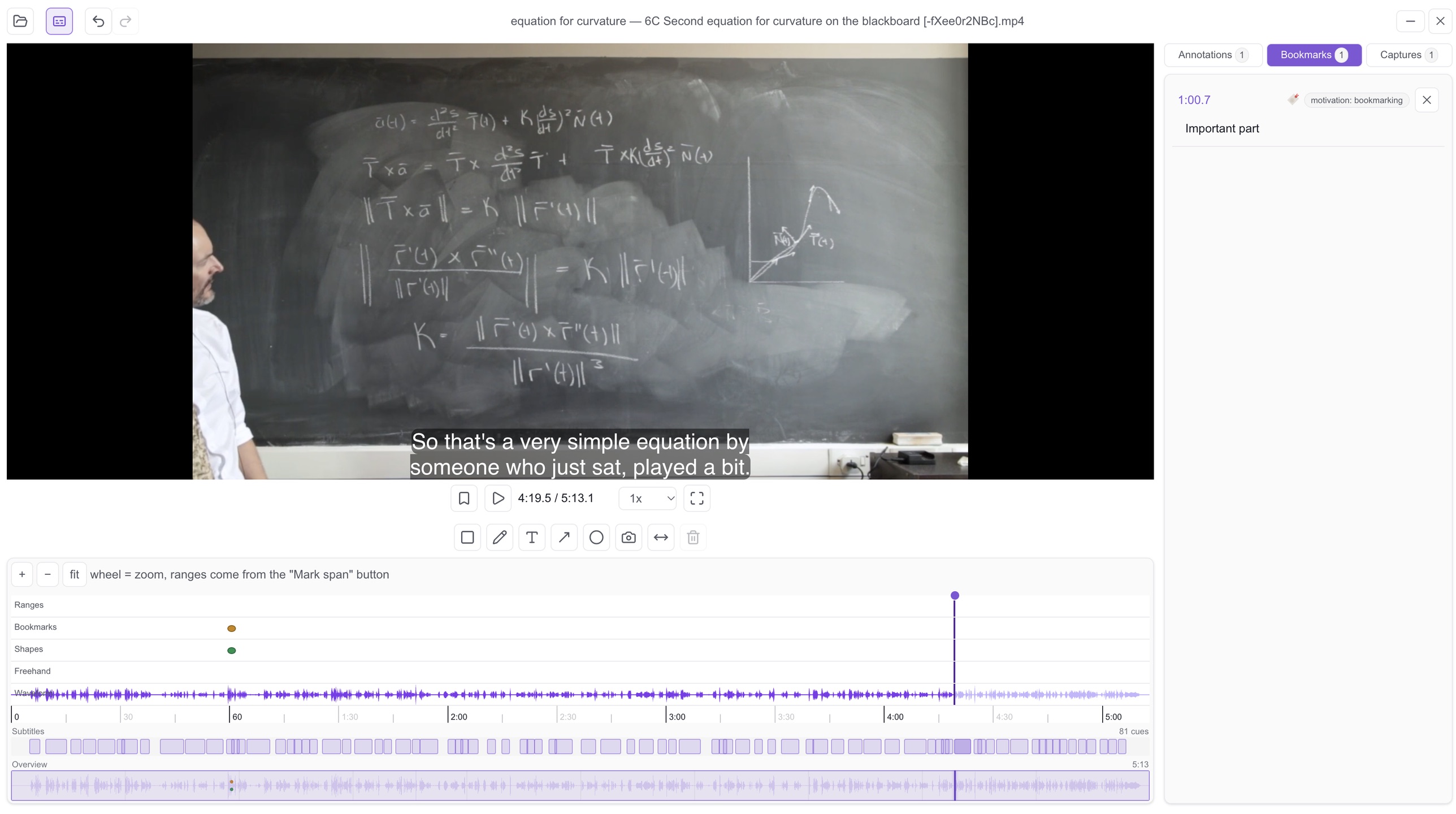
The short version
Each video lives in a video project — a folder in your Media Library that Studio knows belongs to the player. You open the project, pick the video file from your computer, and watch. While you watch you can bookmark moments, mark a span of time, draw on the frame, and save still images called captures. Add a subtitle file and you also get a searchable transcript.
Your AI reads what you have open, through Studio. It can see the current frame, read the subtitles, and list your bookmarks and drawings — then build cards from them.
Getting started
- In your dashboard, open the Studio group in the sidebar and click Video Player (right after PDF Reader).
- Click New video project and give it a name. Studio creates a folder with that name in your Media Library.
- Click Open on the project’s row. The player opens empty — there’s no video yet.
- Click Open video in the player’s toolbar (or drop a video file onto the player) and pick the file from your computer. The first file you open becomes the project’s video.
- Optional: click Open subtitles (or drop a
.vttor.srtfile onto the player). A project has one subtitle file. If you open a new one, it replaces the old one. The file is uploaded into the project’ssubtitles/folder and loads on its own every time you open the project again.
When subtitles are loaded, the Open subtitles button is highlighted, and hovering it shows the file’s name and how many captions it has. A subtitle file with no captions in it shows “This subtitle file has no captions”.
The player plays generally anything your browser can play.
Deleting a project
Each project row has a Delete button (the trash icon, right after Open). It asks “Delete project?” and warns: “This deletes the folder with its files, captures, subtitles and annotations.” Confirm, and the project folder is removed from your Media Library — your captures, the subtitle file, and all your bookmarks and drawings — and the storage is freed. The video file on your computer is untouched, since it was never uploaded. There’s no undo.
If that project’s player is open or minimized, the delete is refused: “Close the reader for this project first.” Close it, then try again. Deleting the folder straight from the Media Library file browser also deletes the project, but without this warning.
Your video stays on your computer
This is the part that works differently from everything else in Studio, so it’s worth a minute.
The video file is never uploaded. When you first open a file in a project, Studio saves only a small fingerprint of it: the file name, its size, and — when your browser can tell — its length. The video itself stays on your disk.
That has one consequence: you pick the file again each time you open the project. Browsers can’t remember files on your computer between visits, so Studio can’t reopen it for you. Open the project, click Open video, pick the same file.
Your work doesn’t wait for that, though. Bookmarks, drawings, captures, and the subtitle track are saved in your account, so they show up as soon as you open the project — even before you pick the video.
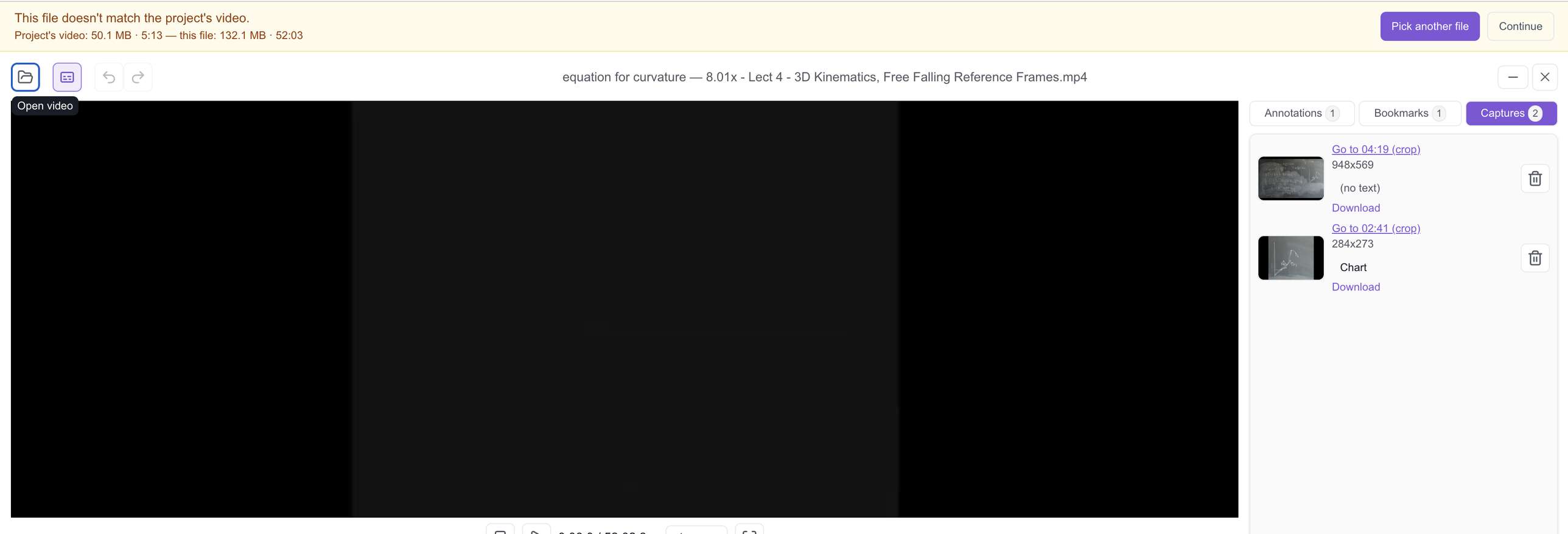
“This file doesn’t match the project’s video.”
When you pick a file, Studio compares it with the fingerprint. If the size or length is different, a banner appears saying “This file doesn’t match the project’s video.” It shows the size and length it expected next to the ones of the file you picked, with two buttons:
- Pick another file — choose a different file.
- Continue — use this file anyway.
Your annotations stay either way. Renaming the file doesn’t trigger the banner: a file with the same size and length counts as the same video.
The player
The toolbar is one line with three parts: on the left, Open video, Open subtitles, Undo, and Redo; in the middle, the project and file name; on the right, Minimize and Close.
Under the video you get play, seek, and speed controls, plus a waveform timeline — a picture of the sound, so you can spot where people speak — with a transcript lane beneath it when subtitles are loaded.
Marking what matters:
- Bookmark marks the current moment.
- Mark span marks a range of time — a whole explanation, a scene, a dialogue.
- Drawing tools let you draw on the frame: rectangle, ellipse, arrow, freehand, and text. Use them to point at a word on a slide or a detail in a scene.
Undo and Redo step back and forward through your changes.
Transcript search sits at the top of the side pane’s Annotations tab and appears once your subtitle track is loaded. Type a word and the player filters the captions to the ones that match, highlights them in the timeline’s subtitle lane, and lets you jump from one hit to the next — the fastest way to find the moment someone said something.
Notes on what you mark. Every bookmark, span, and drawing has a one-line note you can edit by clicking it in the side pane — “Important part”, “ask the professor”, “exam”. Your AI sees these notes, so they’re a good way to tell it what to make cards from.
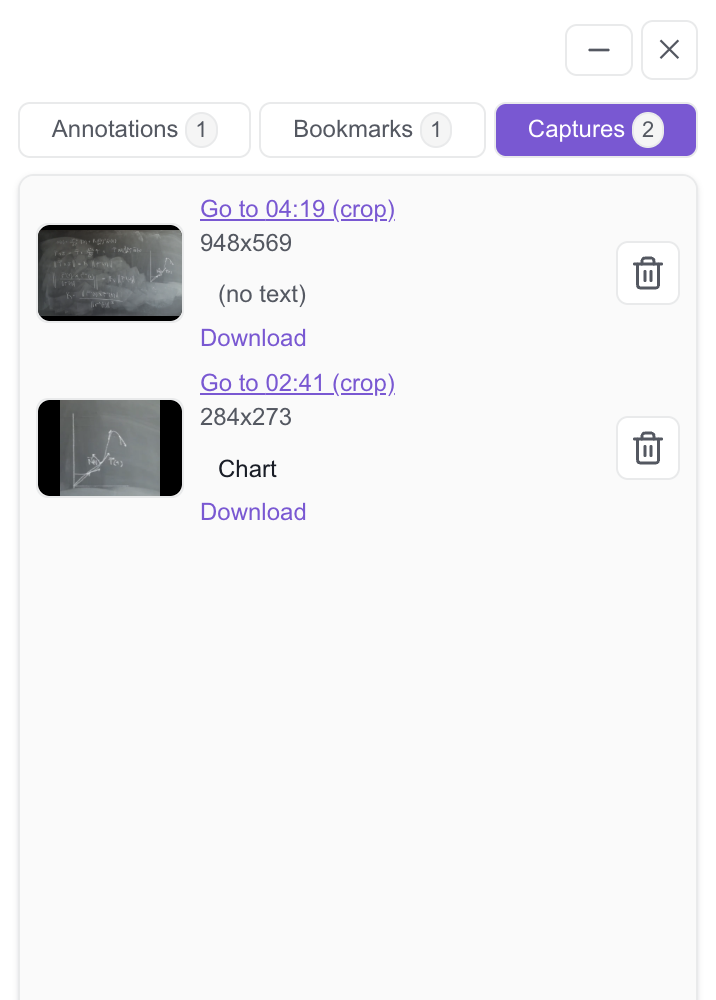
Captures are still images you save: the whole frame, or a cut-out region of it. Each one is saved as an image file (webp, or PNG on browsers that can’t make webp) in the project’s captures/ folder in your Media Library, with a name that starts with its time, like t42s-…. You can add a one-line comment to each capture: click the line and type. Each capture also has a Download link. If you delete a capture, you can undo it while the player is open; the image file itself is removed when you close the player.
The side pane has three tabs — Annotations, Bookmarks, and Captures — each with a count. Selecting an annotation jumps to its tab.
Fullscreen puts only the video in fullscreen. The toolbar, timeline, and side pane come back when you leave it. (This is different from the PDF Reader, where the whole reader goes fullscreen.) The fullscreen button is hidden in browsers that don’t allow fullscreen.
Minimize keeps the player alive while you use other dashboard pages — the video keeps playing and your undo history is kept. The player becomes a small chip at the bottom left, next to the sidebar. Hover it to see the project name, “Video project”, the folder, and the file name (once you’ve opened a file). Click the chip to bring the player back, or its ✕ to close it.
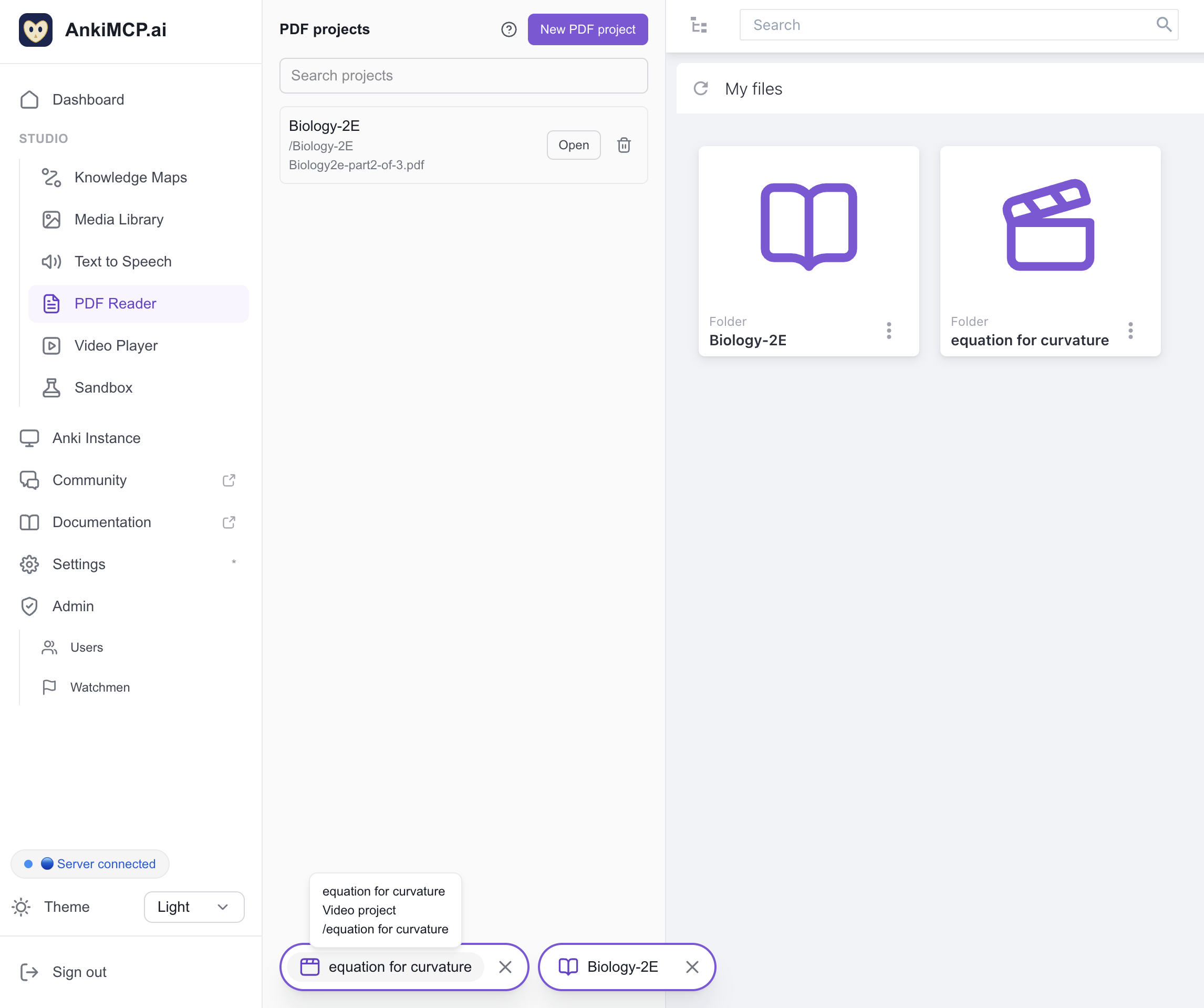
Several readers at once: you can have one reader open per project, in any mix of videos and PDFs. Only one is shown at a time — opening another project minimizes the one you were looking at. Clicking Open on a project that’s already open just brings it back.
Closing — with ✕ or a chip’s ✕ — asks first: “Close reader?”, with the note “Unsaved playback position is lost and a video file must be picked again next time.” Minimize never asks.
The player follows the dashboard’s light or dark theme; switch it in the sidebar. There’s no separate theme control inside the player.
If the player ever crashes, only it closes, with the message “The reader failed and was closed”. The rest of the dashboard keeps working.
Working with your AI
Your AI reaches the player through the Studio MCP URL — copy it from the Studio page in your dashboard (Build with your AI → Copy Studio MCP URL) and add it to Claude or ChatGPT. It’s separate from the tunnel URL that connects your AI to Anki. See Connect MCP clients if you haven’t added it yet.
The player has to be open in a dashboard tab in your browser. Your AI reads what you have open there, read-only. It can’t open, play, or pick videos by itself — that’s always you. If several readers are open, it reads the one on screen, or else the one you used most recently. When everything is minimized, that reader’s chip is filled in, and the others are outlined — so you can see at a glance which one your AI is looking at.
The five video tools:
video_reader_status— your AI calls this first. It reports the project and file name and, once the video is open, the position, length, whether it’s playing or paused, speed, frame size, your current selection, and the subtitle track’s name and caption count. If you haven’t picked the file yet, it says so.video_reader_get_frame— gets a frame as an image: the one on screen, the one at a given time, or the one for a specific annotation. For an annotation, it takes the frame where the annotation starts; for a rectangle or ellipse it crops to the area you marked, and for an arrow, freehand line, or text it shows the whole frame with your drawing on top. Your AI can also ask for every drawing on screen at that time to be drawn into the frame. Asking for a different time briefly jumps your video there and back, so don’t be surprised if it flickers. The reply always states the time the frame actually shows.video_reader_get_subtitles— reads the transcript, with start and end times for each caption. Your AI can ask for just a time window, like minutes 10 to 20.video_reader_list_annotations— lists your bookmarks, spans, drawings, and captures, each with its time, type, and your note, optionally filtered by time or type.video_reader_get_capture— gets one of your saved captures, with its time and your comment.
Before you pick the file, your AI can still check the status, list your annotations, and get your captures — those live in your account. Frames and subtitle text need the video to be open.
Things to ask:
What’s on the slide at 12:30?
Show me what I circled at the start.
Summarise minutes 10–20 and make cards.
Make a card from each of my bookmarks, using the subtitle line at that moment.
Make cards from everything I marked with the note “exam”.
Limits and plans
- Projects: the Free plan includes 1 video project (and 1 PDF project). A paid plan — Plus or Pro — removes that limit. Everyone has a hard cap of 100 projects. If you downgrade, the projects you already have are kept.
- Storage: your videos aren’t uploaded, so they don’t use storage. Captures and the subtitle file do count toward your Media Library storage — see Media Library for the numbers.
- What your AI receives: each answer is capped at about 700 KB. Frames are shrunk step by step to fit — down to 854 pixels wide. If even that doesn’t fit, your AI gets a “too large” message instead.
- Annotations: up to 2,000 per video, each up to 256 KB. They sync live between readers showing the same video, for example in two browser tabs. Deleting a project’s video (or your account) deletes its annotations.
- Browser: you need a modern browser that can open files from your computer.
Not supported today: generating subtitles, extracting audio, more than one subtitle file per project or switching between tracks, removing subtitles from the player, and streaming or cloud videos — the player works with files on your computer only.
Example: cards from a recorded lecture
Say you have a recorded biology lecture and its subtitle file.
- Create a video project called “Cell biology — lecture 3”, open it, click Open video and pick the recording, then Open subtitles and pick the
.srtfile. - Watch. When the lecturer puts up a diagram worth remembering, press Bookmark. When the lecturer spends a few minutes on one idea, use Mark span to cover it. Draw a rectangle around the key label on a slide.
- Keep the player open — minimize it if you like — and ask your AI:
Look at the lecture I have open in the Video Player. Read the subtitles from minute 10 to minute 20 and make 8 cards from the key points. Use my bookmarks in that range to include a frame of the slide where it helps.
Your AI checks the status, reads the captions for that window, lists your bookmarks, and pulls the frames it needs. It then drafts the cards — in the Sandbox if you want to polish them first — and adds them to your deck through your Anki connection (see Add-on vs CLI).
Common questions
Why do I have to pick the file again every time? Because the video never leaves your computer, and browsers can’t remember local files between visits. Studio keeps only a fingerprint (name, size, length) to recognise the file. Your annotations, captures, and subtitles are already there when you open the project.
Is my video uploaded anywhere? No. Only the fingerprint is saved. Captures you make and the subtitle file you add are uploaded into the project folder in your Media Library.
I renamed my video file. Will the project still recognise it? Yes. A file with the same size and length counts as the same video.
My AI says “No PDF or video is open in the studio Reader. Open a PDF or video project in the Reader page first.” The player isn’t open in a dashboard tab. Open the project in the Video Player — minimized is fine — and ask again.
My AI says “The studio Reader has a video open, which this tool does not read.” The other way around also happens: your AI tried a PDF tool while a video is open, or a video tool while a PDF is shown. It should switch to the right tools on its own; if not, tell it which one you mean.
My AI says “The project is open but its video file is not loaded yet; ask the user to open the file in the Reader.” You opened the project but haven’t picked the video yet. Click Open video and pick the file. Your AI can still list your annotations and captures meanwhile.
My AI says the time is past the end of the video. It asked for a moment the video doesn’t have — for example “Time 900s is past the end of the video; it is 612s long.” Ask again with a time inside the video.
My AI says “The studio Reader in the user’s browser did not answer in time. Please try again.” The dashboard tab in your browser took too long to reply. Make sure the player is still open there and ask again.
Can my AI play or pause the video for me? No. It reads what you have open; it doesn’t control the player. The one exception: asking for a frame at another time briefly jumps the video there and back.
Next steps
- Media Library — where your project folders, captures, and subtitle files live.
- Sandbox — draft cards from your video and see them render before they reach your deck.
- PDF Reader — the same idea for PDFs: highlight, capture, and let your AI make cards.
The screenshots on this page show “6C Second equation for curvature on the blackboard” by Dr Juan Klopper, licensed under CC BY 3.0. Audio extracted and subtitles added.
Disclaimer: “Anki” is a registered trademark of Ankitects Pty Ltd. AnkiMCP is an independent, community-built project and is not affiliated with, endorsed by, or sponsored by Ankitects. MCP is an open standard originated by Anthropic; AnkiMCP is likewise not affiliated with or endorsed by Anthropic.