How to Connect Claude to AnkiDroid over Local Wi-Fi
Run an MCP server on your phone and connect Claude Desktop or Claude Code to it over your home Wi-Fi. You don’t need an account, and nothing goes through AnkiMCP’s servers.
In local mode, the AnkiMCP app runs a small server on your phone. A computer on the same Wi-Fi talks to it directly.
What you need
- Android 8.0 or later, with AnkiDroid 2.24 or later, opened at least once.
- The AnkiMCP app for Android, with access to AnkiDroid granted. The app asks for it on first launch; see Step 1 of Remote access.
- A computer on the same Wi-Fi with Claude Code, or Claude Desktop plus Node.js.
Claude on the web, the Claude mobile app, and Claude Desktop’s own custom connectors can’t use local mode. They connect from Anthropic’s cloud, which can’t reach a phone on your home network. Use remote access for those.
Time: about 5 minutes.
Step 1: Turn on the local server
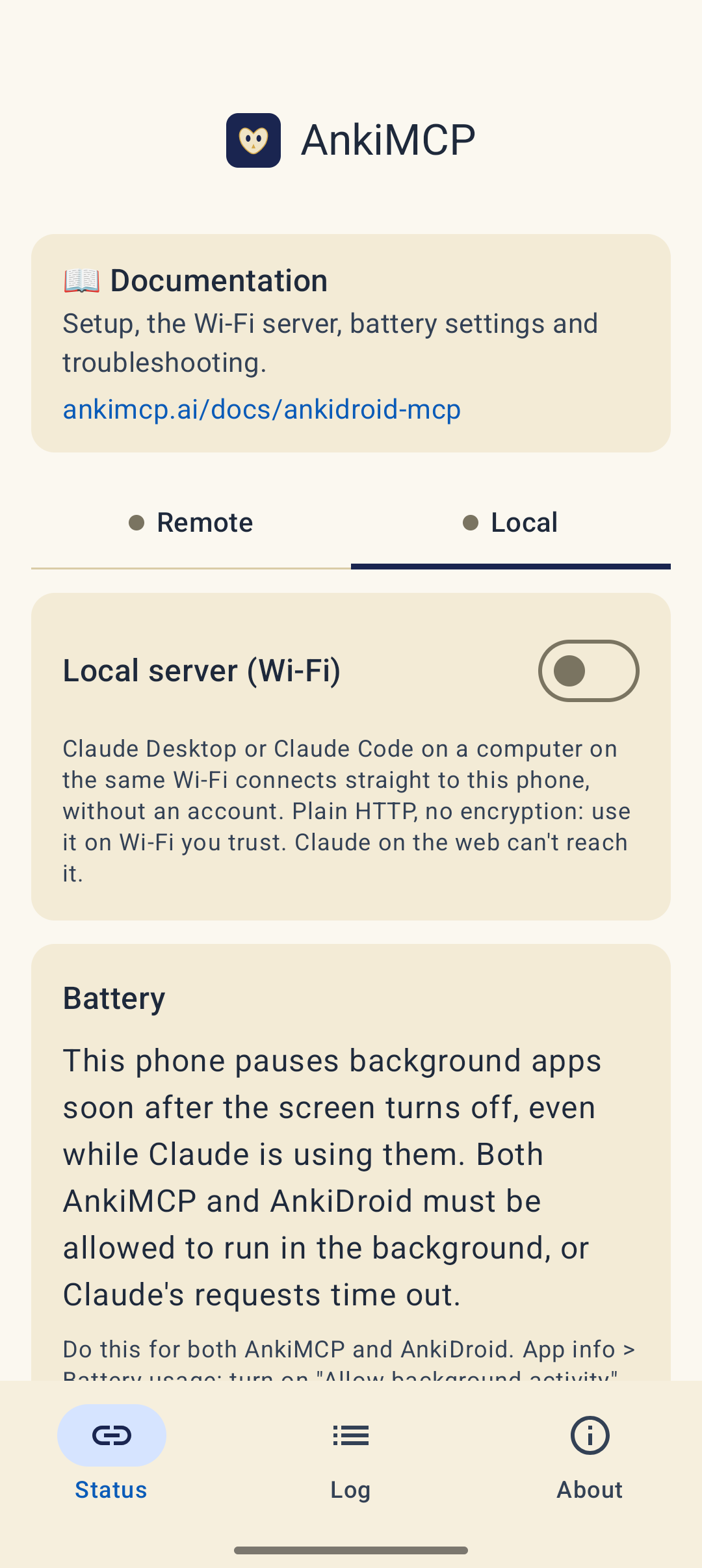
- On the Status tab, open Local.
- Turn on Local server (Wi-Fi).
The card shows Running on your phone’s address and the MCP server URL, for example http://192.168.0.125:8765/mcp.
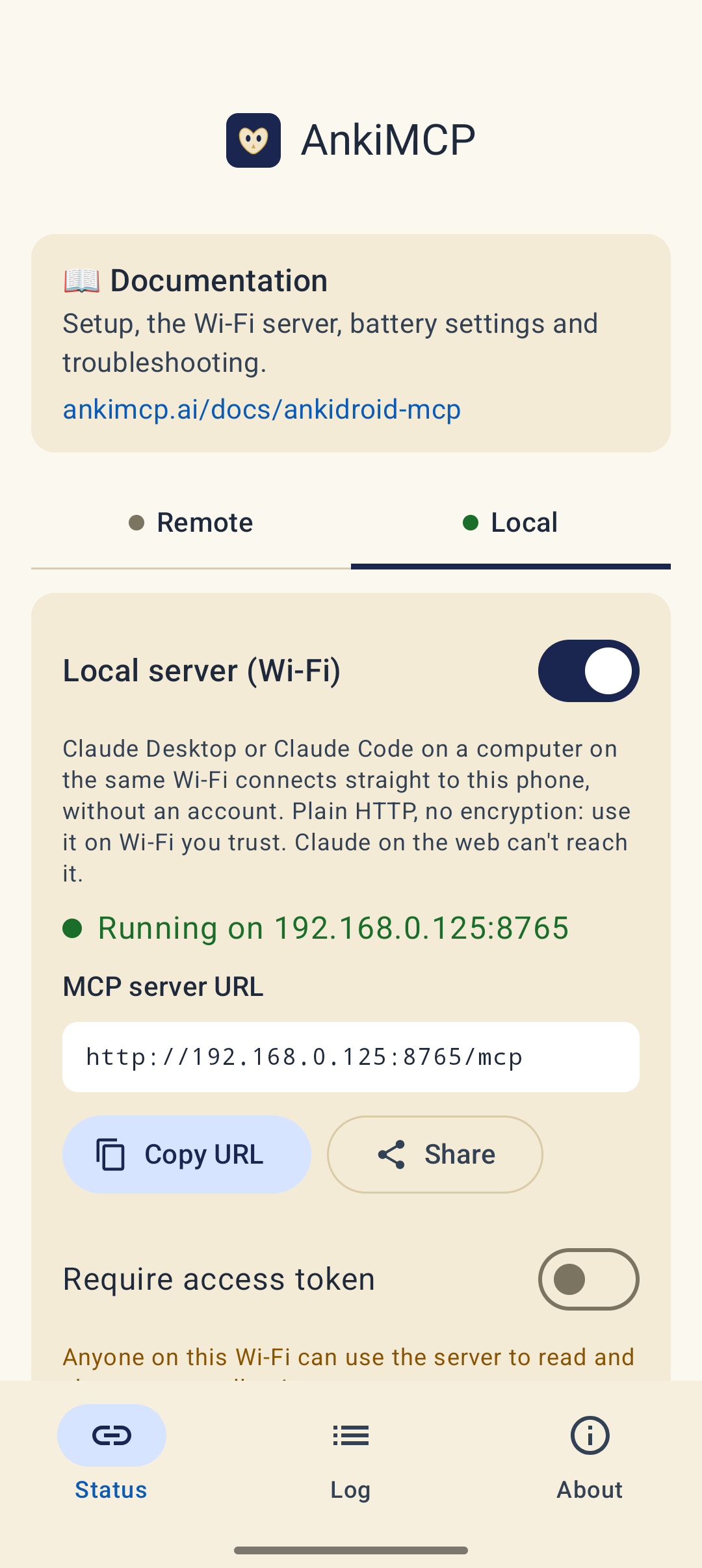
If the card says Connect to Wi-Fi, your phone isn’t on Wi-Fi. If it says the Wi-Fi gives the phone a public internet address, the server stays off on purpose, because it would be reachable from outside your network.
Step 2: Turn on the access token (recommended)
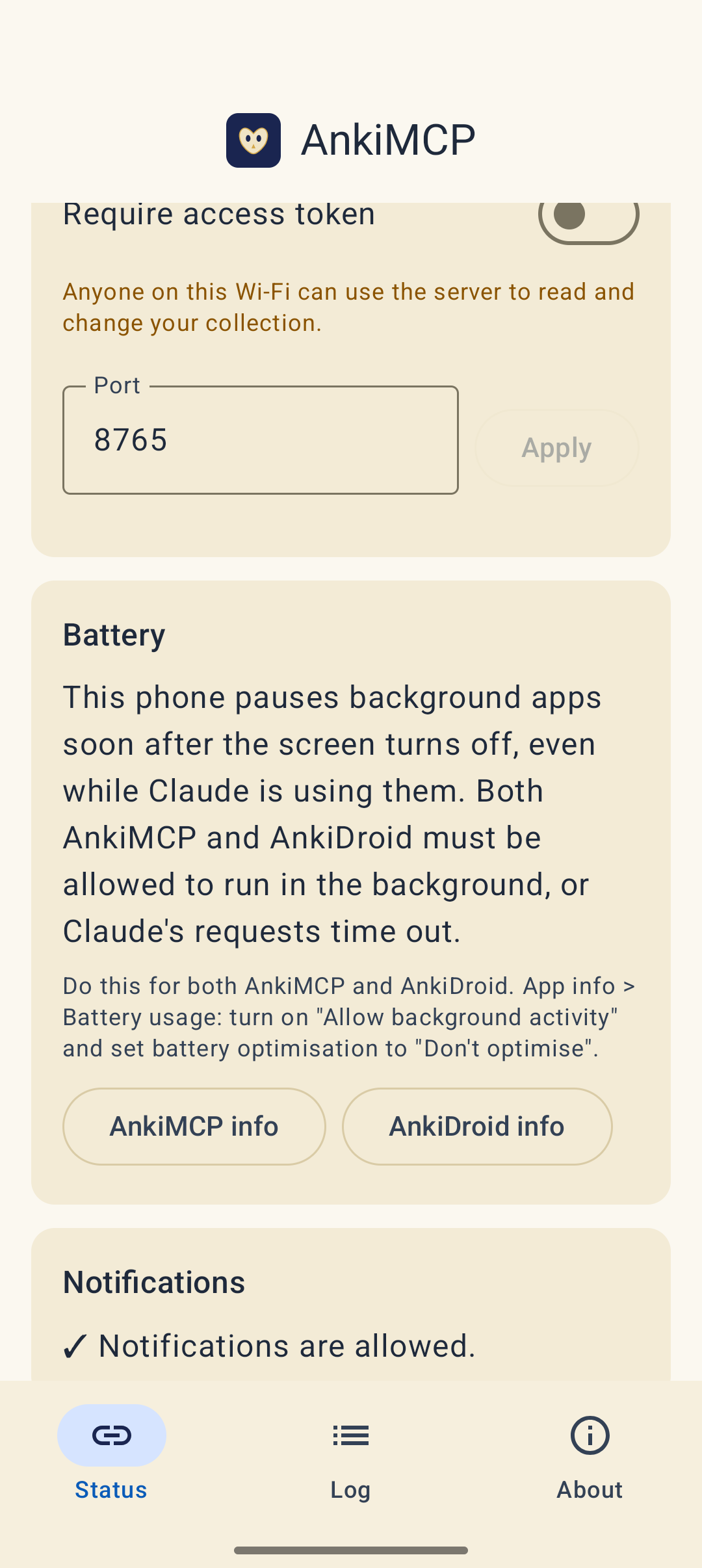
Without a token, anyone on the same Wi-Fi can read and change your collection. Turn on Require access token unless you’re the only one on the network.
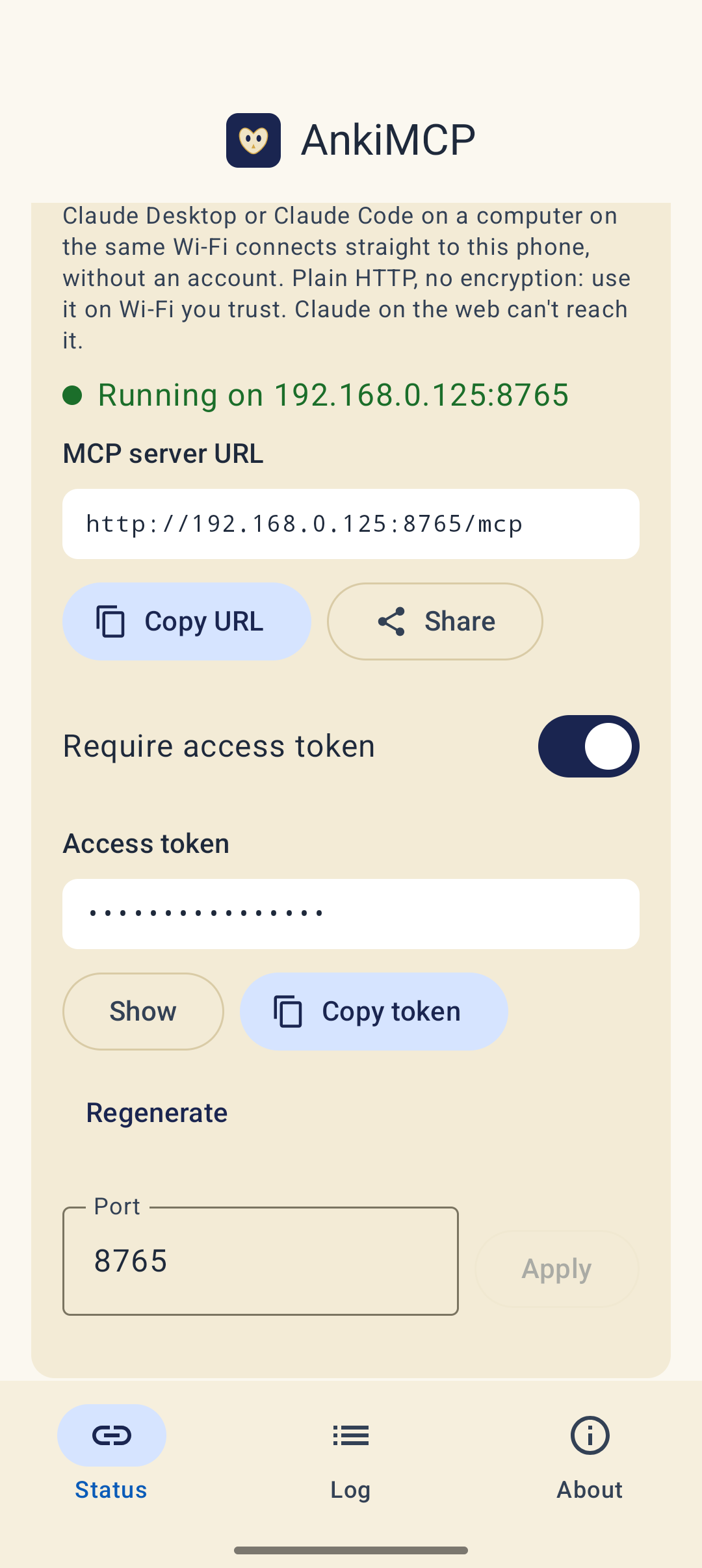
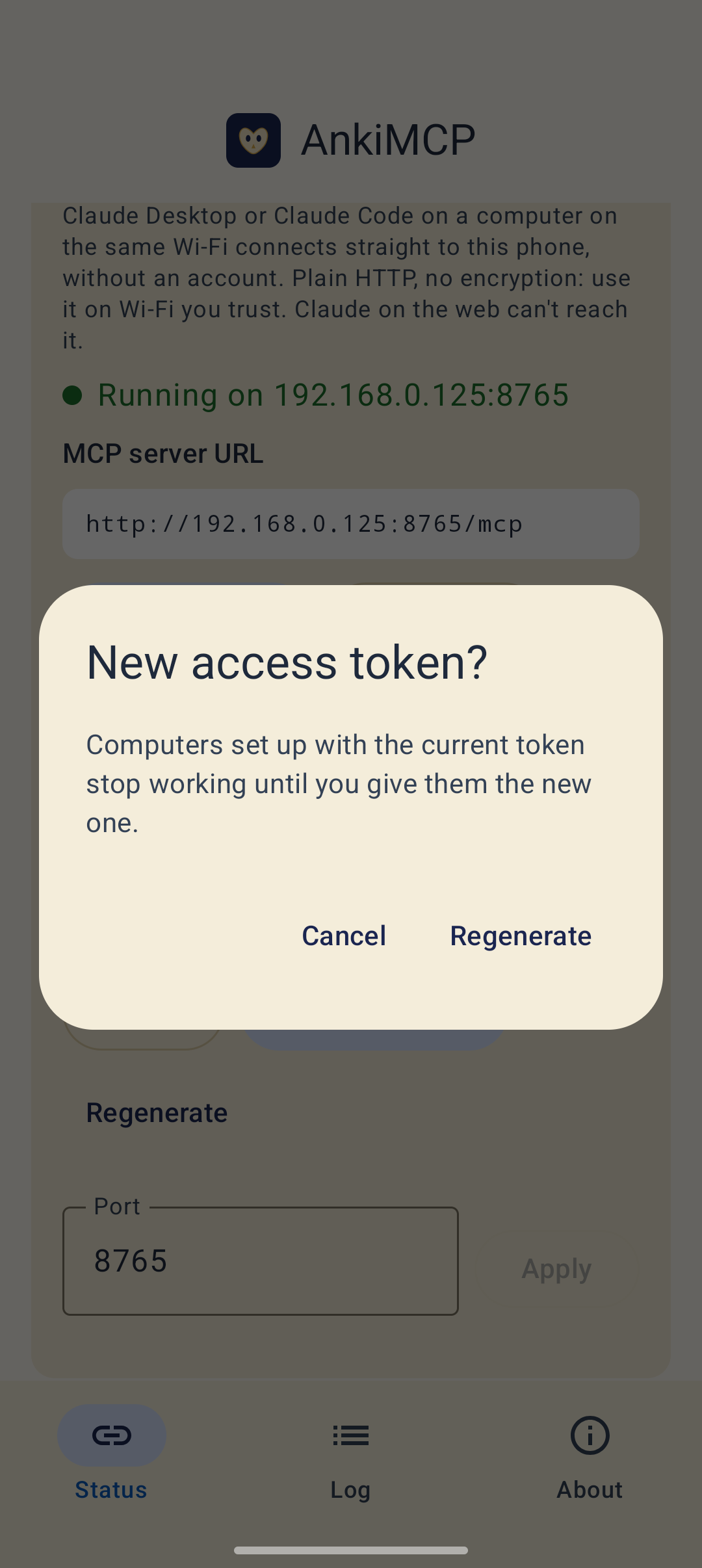
Regenerate replaces the token. Computers set up with the old one stop working until you give them the new one.
Step 3: Send the URL to your computer
Tap Copy URL (and Copy token), or tap Share to send both at once, for example to yourself by email or a messaging app. Share sends this text:
AnkiMCP on my Wi-Fi
URL: http://192.168.0.125:8765/mcp
Token: <your token>
The Token line appears only when Require access token is on.
Step 4: Add it to Claude
In the examples below, replace 192.168.0.125:8765 with your own address and YOUR_TOKEN with your token.
Claude Code
claude mcp add --transport http ankidroid http://192.168.0.125:8765/mcpWith the access token on:
claude mcp add --transport http ankidroid http://192.168.0.125:8765/mcp \
  --header "Authorization: Bearer YOUR_TOKEN"
Claude Desktop
Claude Desktop reaches the phone through mcp-remote, which needs Node.js. Open Settings → Developer → Edit Config, add this to claude_desktop_config.json, and restart Claude Desktop:
{
  "mcpServers": {
    "ankidroid": {
      "command": "npx",
      "args": ["-y", "mcp-remote", "http://192.168.0.125:8765/mcp", "--allow-http", "--transport", "http-only"]
    }
  }
}
With the access token on, pass it through an environment variable:
{
  "mcpServers": {
    "ankidroid": {
      "command": "npx",
      "args": [
        "-y", "mcp-remote", "http://192.168.0.125:8765/mcp", "--allow-http", "--transport", "http-only",
        "--header", "Authorization:${AUTH_HEADER}"
      ],
      "env": { "AUTH_HEADER": "Bearer YOUR_TOKEN" }
    }
  }
}
Keep Authorization:${AUTH_HEADER} exactly as written, with no space after the colon. The space lives in the env value instead, so npx doesn’t split it.
Check it worked
Ask Claude: “list my Anki decks”. If it names your decks, you’re connected.
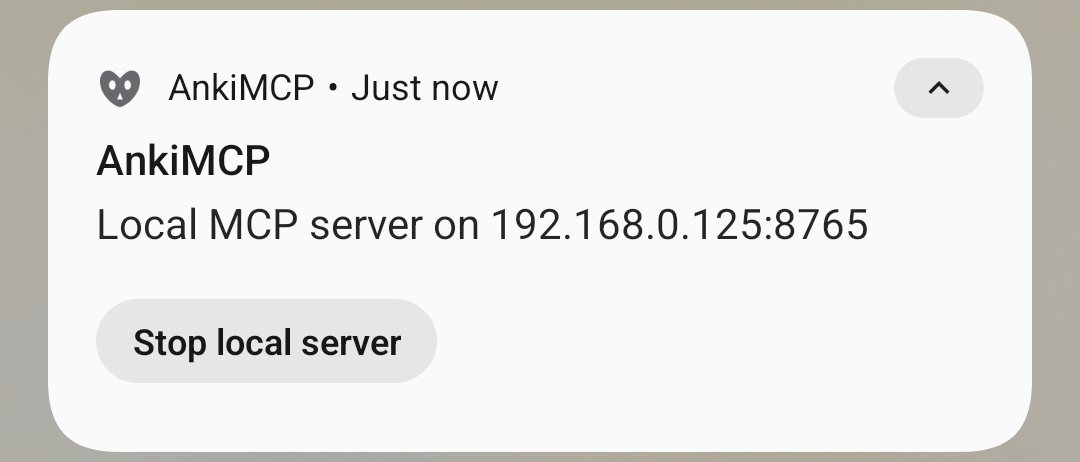
While the server runs, a notification shows Local MCP server on your address, with a Stop local server button. The app doesn’t need to stay open.
Change the port
The server uses port 8765 unless you change it. Enter a number from 1024 to 65535 in the Port field and tap Apply. The server restarts on the new port, so update the URL on your computer.
Fix common problems
Claude Code says the server failed to connect.
Check the address first. If the access token is on, check the token: a missing or wrong token gets a 403 Forbidden answer asking for Authorization: Bearer <token>.
It fails on a Mac with EHOSTUNREACH.
Allow the app that runs Claude Code or Claude Desktop (Terminal, iTerm, or Claude) under System Settings → Privacy & Security → Local Network.
It worked yesterday, not today. Your phone’s address probably changed. That happens when it joins another network or gets a new address from the router. Copy the new URL from the app, or reserve a fixed address for the phone in your router.
The computer can’t reach the phone at all. Guest Wi-Fi often blocks devices from talking to each other. Put both on the same regular network.
The phone stops answering when the screen is off. Nothing can wake the app in local mode. Turn battery optimisation off for AnkiMCP, and on phones that pause background apps, follow the Battery card for both AnkiMCP and AnkiDroid. Set this up before you rely on it with the screen off.
After a reboot, nothing connects. The local server doesn’t start on its own after a reboot. Open the app and it comes back.
Next steps
- Want Claude on the web or on your phone? Set up remote access.
- Want better cards? Try these AI prompts for Anki.
Disclaimer: “Anki” is a registered trademark of Ankitects Pty Ltd. AnkiMCP is an independent, community-built project and is not affiliated with, endorsed by, or sponsored by Ankitects or the AnkiDroid project. Android is a trademark of Google LLC. MCP is an open standard originated by Anthropic; AnkiMCP is likewise not affiliated with or endorsed by Anthropic.