How to Connect Grok to Anki
Connect Grok to Anki with the AnkiMCP add-on’s built-in tunnel, so Grok can read your decks and build cards from your browser.
Grok runs in the cloud, so it can’t see Anki on your computer. The AnkiMCP add-on fixes this. It runs inside Anki and, with one click, gives your collection a secure public web address that Grok can reach. You turn on the tunnel, sign in once, and add the address to Grok as a custom connector.
What you need
- A Grok account at grok.com. You’ll add the tunnel as a custom connector under Plugins → Connectors.
- Anki 25.07 or later, open on your computer. Get it from apps.ankiweb.net.
- The AnkiMCP add-on for Anki, code
124672614. You’ll install it below. - An AnkiMCP account. The tunnel has a free tier and a paid tier. You sign in the first time you connect it.
Time: about 5 minutes.
Why a tunnel?
Grok runs on a remote server, not on your machine. It has no way to reach localhost, where Anki lives. The add-on’s tunnel relays messages between Grok and your local Anki over a secure, signed-in connection. Your cards never leave your control, and the link is private to your account.
Step 1: Install the AnkiMCP add-on
The add-on starts a small server inside Anki. It launches on its own every time you open Anki.
- Open Anki.
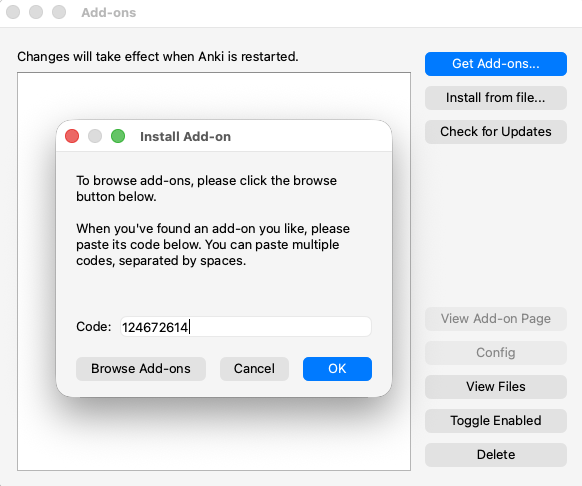
- Go to Tools → Add-ons → Get Add-ons…
- Enter this code:
124672614 - Click OK, then restart Anki.
Step 2: Connect the tunnel and sign in
Now turn on the tunnel so your Anki gets a public web address.
- Go to Tools → AnkiMCP Server Settings…
- Click Connect Tunnel.
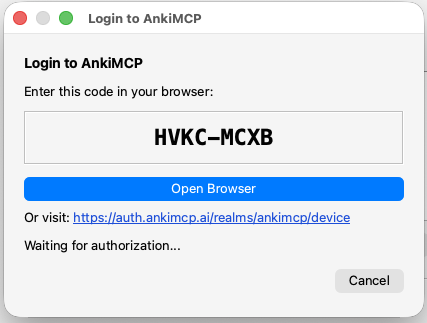
- A login dialog shows a one-time code. Click Open Browser and enter that code on the page that opens.
- Approve the sign-in. The add-on saves your login, so you won’t repeat this each time.
Step 3: Copy the tunnel URL
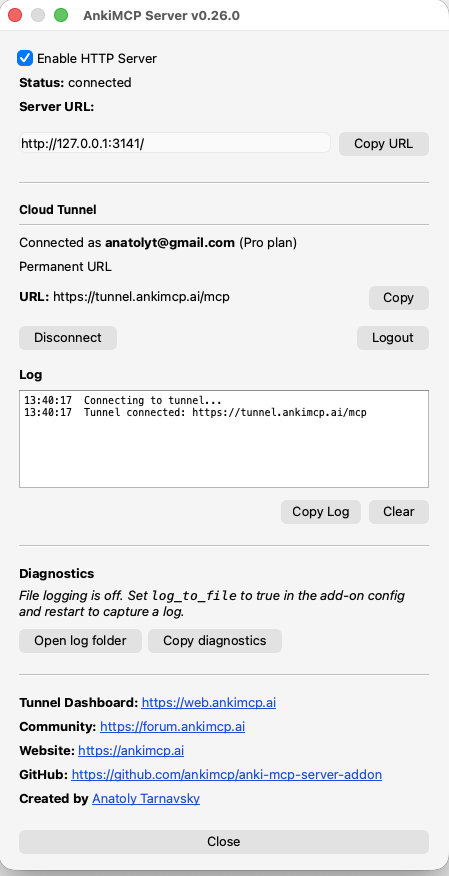
The tunnel address is the same for everyone:
https://tunnel.ankimcp.ai/mcpIt’s safe to share, because it only works after you sign in — requests reach your Anki only when the AI app is signed in with your account. Copy that URL. You’ll paste it into Grok next.
Step 4: Add the tunnel to Grok
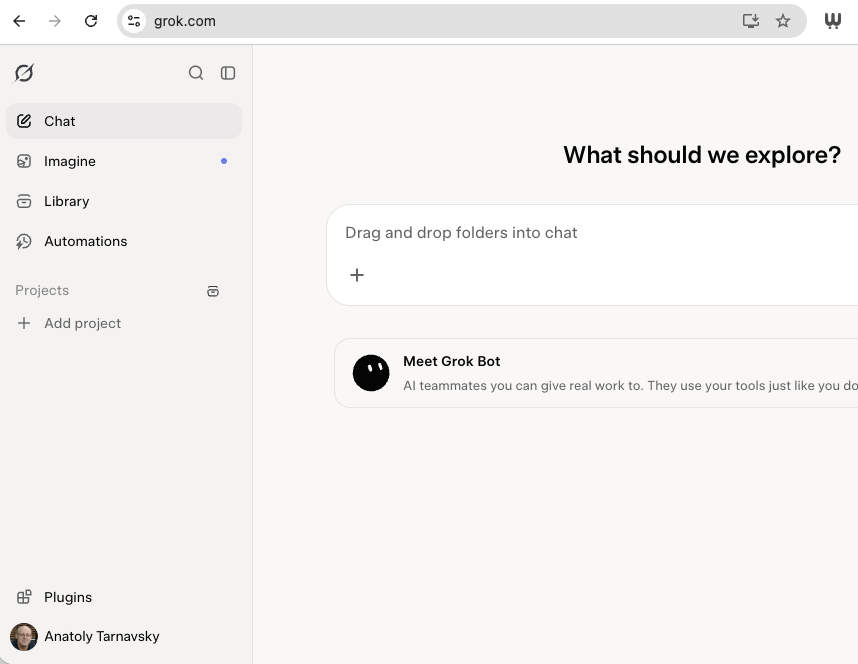
Open grok.com in your browser and add the tunnel as a custom connector.
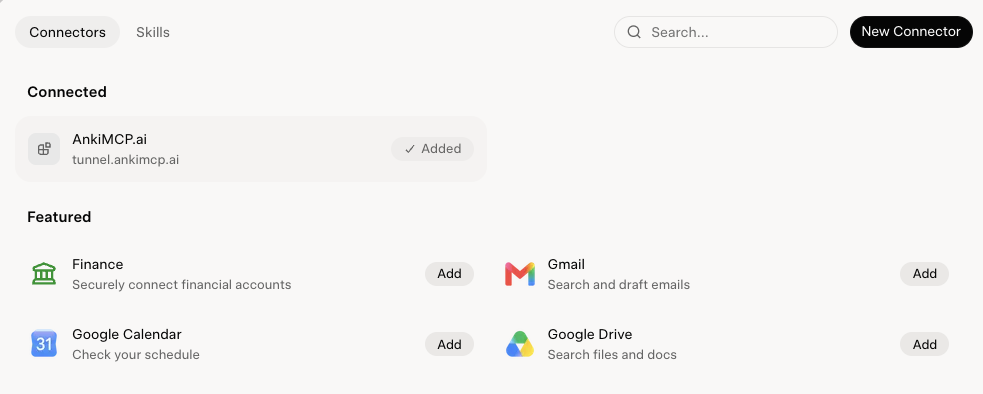
- In the left sidebar, click Plugins near the bottom.
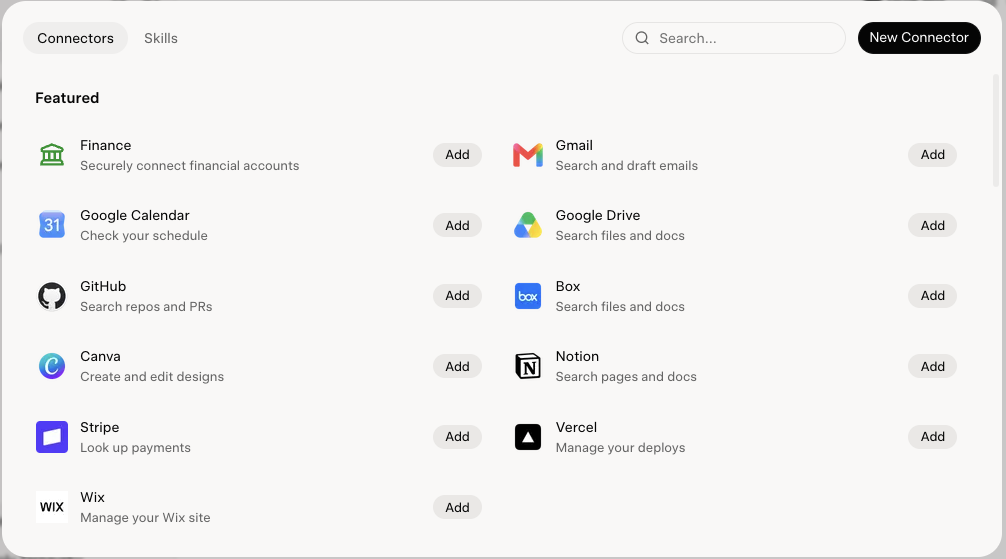
- On the Connectors tab, click New Connector in the top-right corner.
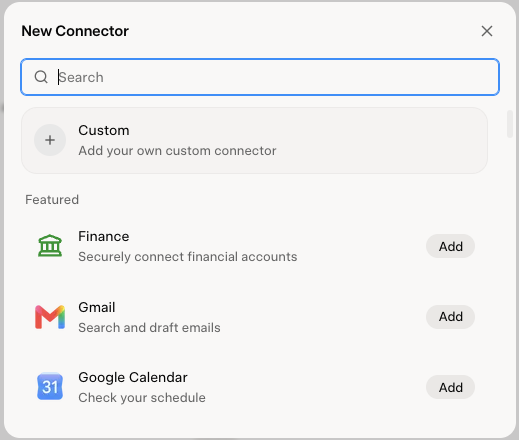
- In the New Connector dialog, click Custom at the top, above the featured connectors.
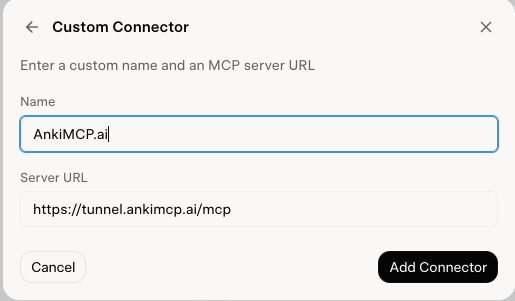
- Fill in the Custom Connector form: a Name like
AnkiMCP.ai, and the tunnel URL in Server URL. The placeholder ends in/sse; ignore it, your URL ends in/mcp. Click Add Connector.
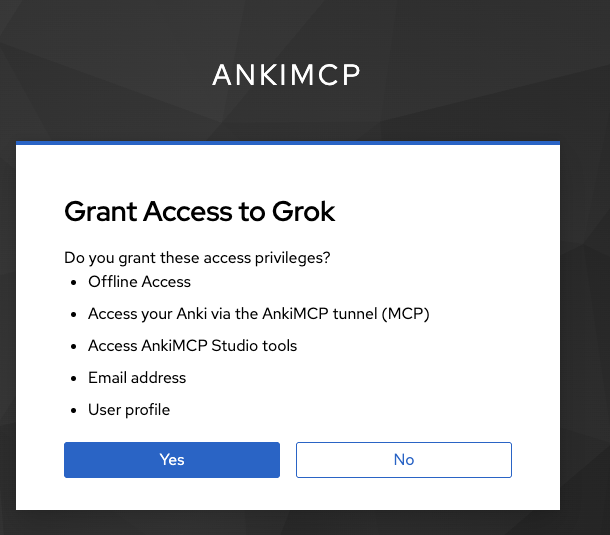
- AnkiMCP opens and asks you to Grant Access to Grok. Sign in if prompted, then click Yes.
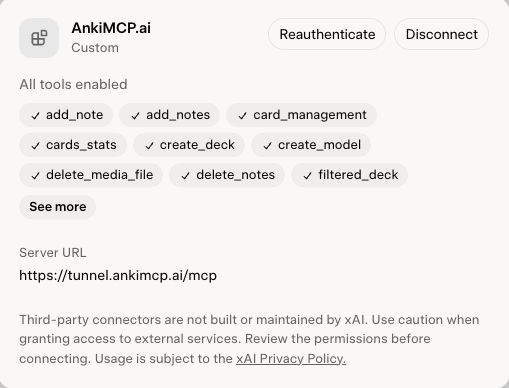
- Back in Grok, AnkiMCP.ai now shows under Connected on the Connectors tab. Click it to see the Anki tools Grok can use, plus Reauthenticate and Disconnect buttons.
Check it worked
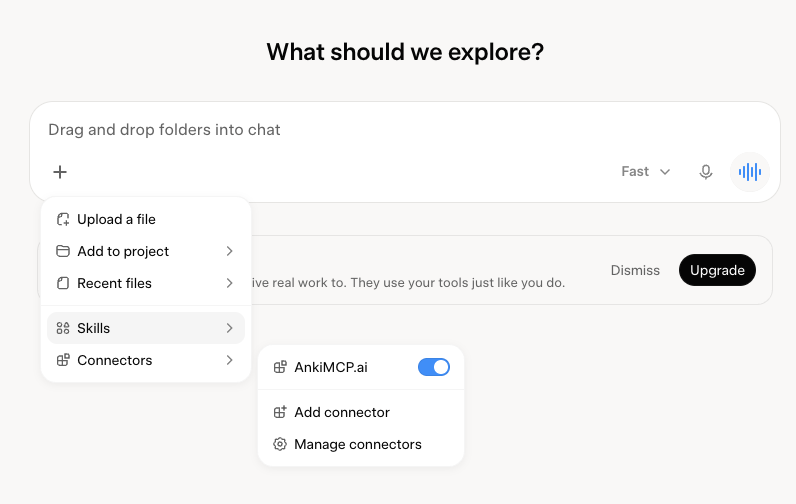
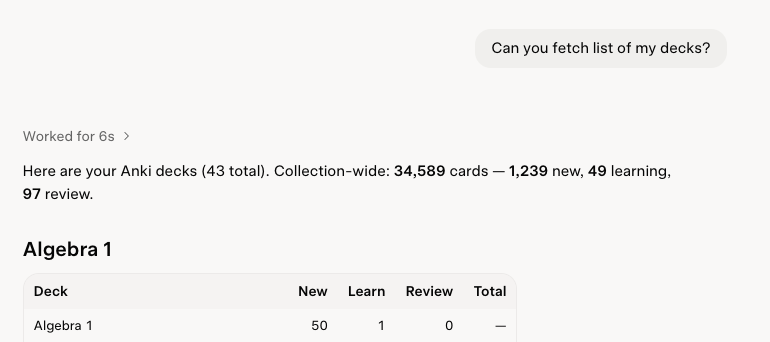
Keep Anki open, then start a new chat. Click the + button in the message box, open Connectors, and make sure the AnkiMCP.ai toggle is on. Then ask: “Can you fetch a list of my decks?”
If Grok names your real decks and card counts, the tunnel works. You can now ask it to make cards, search your collection, or review with you.
Fix common problems
Grok can’t connect. Make sure Anki is open and the tunnel shows as connected in Tools → AnkiMCP Server Settings…. The tunnel only relays while Anki is running. Reconnect the tunnel if needed.
Grok connects but sees no decks. Anki itself may be closed. Open Anki and confirm the tunnel is connected in Tools → AnkiMCP Server Settings….
Grok doesn’t use the connector. Open the + menu in the message box, go to Connectors, and check that the AnkiMCP.ai toggle is on for this chat.
Grok asks me to sign in again. Open Plugins → Connectors, click AnkiMCP.ai, and click Reauthenticate.
Sign-in didn’t open my browser. The login dialog shows a backup link and code. Open the link and enter the code to approve.
Common questions
Do I have to pay? The add-on is free. The tunnel has a free tier to get started and a paid tier for higher limits — see pricing.
Next steps
- Got a commute? Review your cards by voice in the Grok mobile app, hands-free.
- New to local vs. remote? Read Remote vs local access to choose the right path.
- Want better cards? Try these AI prompts for Anki.
Disclaimer: “Anki” is a registered trademark of Ankitects Pty Ltd. AnkiMCP is an independent, community-built project and is not affiliated with, endorsed by, or sponsored by Ankitects. MCP is an open standard originated by Anthropic; AnkiMCP is likewise not affiliated with or endorsed by Anthropic. Grok is a product of xAI; AnkiMCP is not affiliated with or endorsed by xAI.