AnkiMCP Troubleshooting: Fix Common Problems
Most AnkiMCP problems have one of three causes: Anki is closed, the connection or add-on isn’t running, or your AI client needs a restart.
Find your symptom below, apply the fix, then try your AI assistant again. Most fixes take a minute or two. Some steps differ by how you connect, so each section tells you which path it applies to.
Start with these quick checks
These two checks fix most problems, no matter how you connect.
- Make sure Anki is open. AnkiMCP only reaches your cards while the Anki app is running. Open Anki, then ask your AI again.
- Restart your AI client. Close and reopen it so it reconnects to AnkiMCP. Clients connect to AnkiMCP only when they start.
If your AI still can’t reach your cards, keep reading.
Your AI can’t see your decks or won’t connect
Symptom: You ask your AI to list your decks and it finds nothing, or it can’t connect at all.
The fix depends on how you connect. Not sure which path you use? See Add-on vs CLI.
If you use the AnkiMCP add-on
The add-on runs a server inside Anki. No AnkiConnect is involved on this path.
- In Anki, open Tools → AnkiMCP Server Settings…
- Confirm the server shows as running. It starts automatically when Anki opens.
- If you don’t see it, restart Anki, then check again.
If you use the CLI or the Claude Desktop bundle
These paths reach Anki through the AnkiConnect add-on.
- Open http://localhost:8765 in your browser. You should see the plain text
AnkiConnect. - If you don’t, install or reinstall AnkiConnect. In Anki, go to Tools → Add-ons → Get Add-ons…, enter the code
2055492159, click OK, then restart Anki. - For the CLI, also confirm Node.js 22.12.0 or newer is installed.
- For the CLI, check your config JSON for typos: no trailing commas, no mismatched braces.
- Restart your AI client so it reconnects.
For setup help, see Connect Claude or Connect other MCP clients.
Using Claude on the web, ChatGPT, or another remote AI (tunnel)
Symptom: A remote AI like ChatGPT can’t reach your cards, or the connection drops.
A remote AI reaches your computer through a tunnel. The tunnel only relays requests to Anki on your own machine, so a few things must stay true.
- Check the tunnel is connected. Add-on: open Tools → AnkiMCP Server Settings… and confirm the tunnel shows connected. CLI: make sure the
--tunnelterminal is still running (see the CLI tunnel docs). - Keep your computer awake and Anki open. If your computer sleeps or Anki closes, the tunnel has nothing to relay.
- Sign in again if the session expired. Reconnect the tunnel to refresh it.
For full setup, see Connect ChatGPT to Anki.
Advanced: If you see 421 Invalid Host header after setting a custom hostname for the add-on’s HTTP server, see Remote Access Security to allow that name.
Your AI doesn’t see the new tools after an add-on update
Symptom: You updated the AnkiMCP add-on, but your AI still uses the old tools, says a tool doesn’t exist, or calls one that was removed. New features from the release notes don’t show up.
Claude and ChatGPT read the list of tools once, when you connect, and keep that copy. An add-on update changes the list on your side, but the AI keeps using its old copy until you tell it to look again. Nothing is broken; it just needs a refresh.
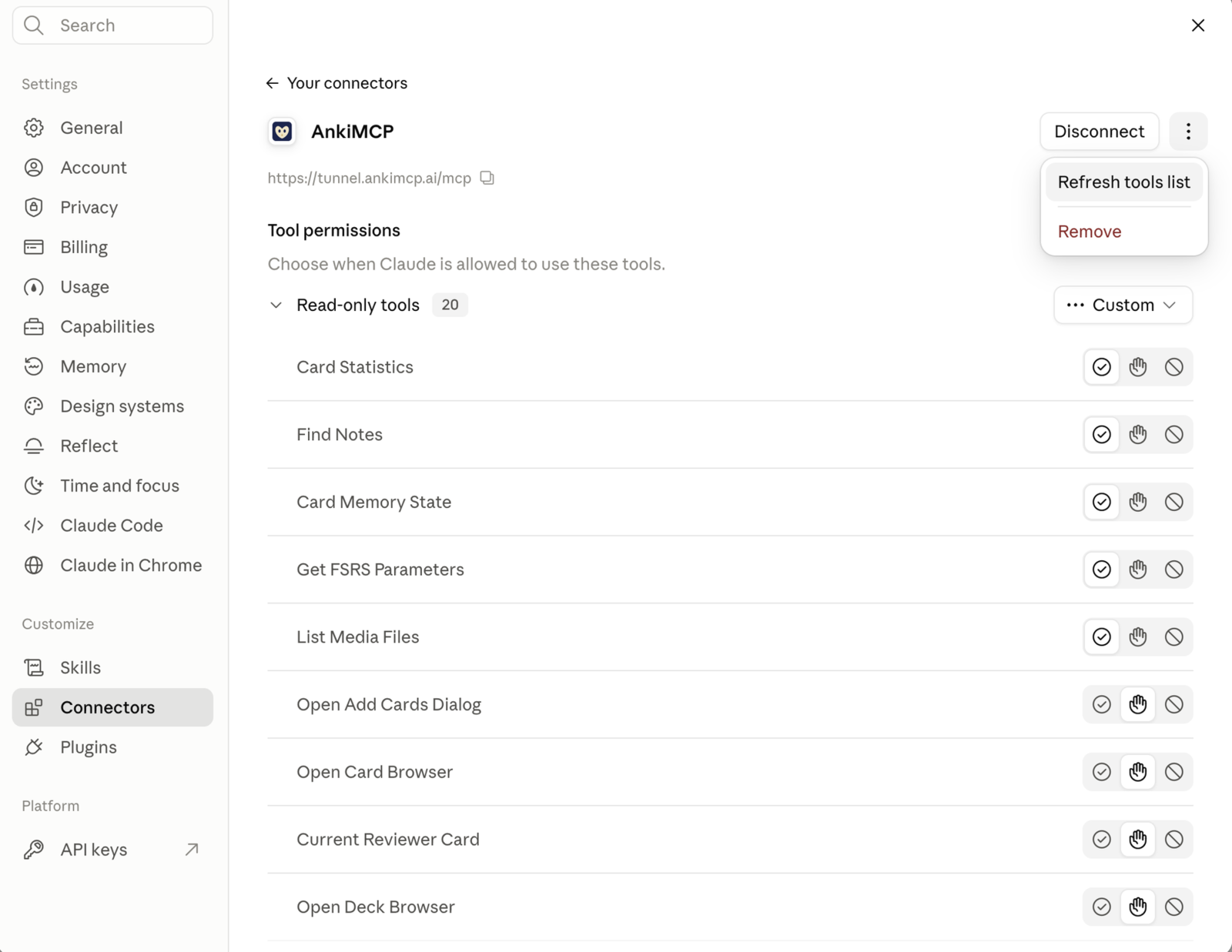
Claude (claude.ai). Open Settings → Connectors, click AnkiMCP, then the ⋮ menu next to Disconnect and choose Refresh tools list. The tool permissions list updates in place.
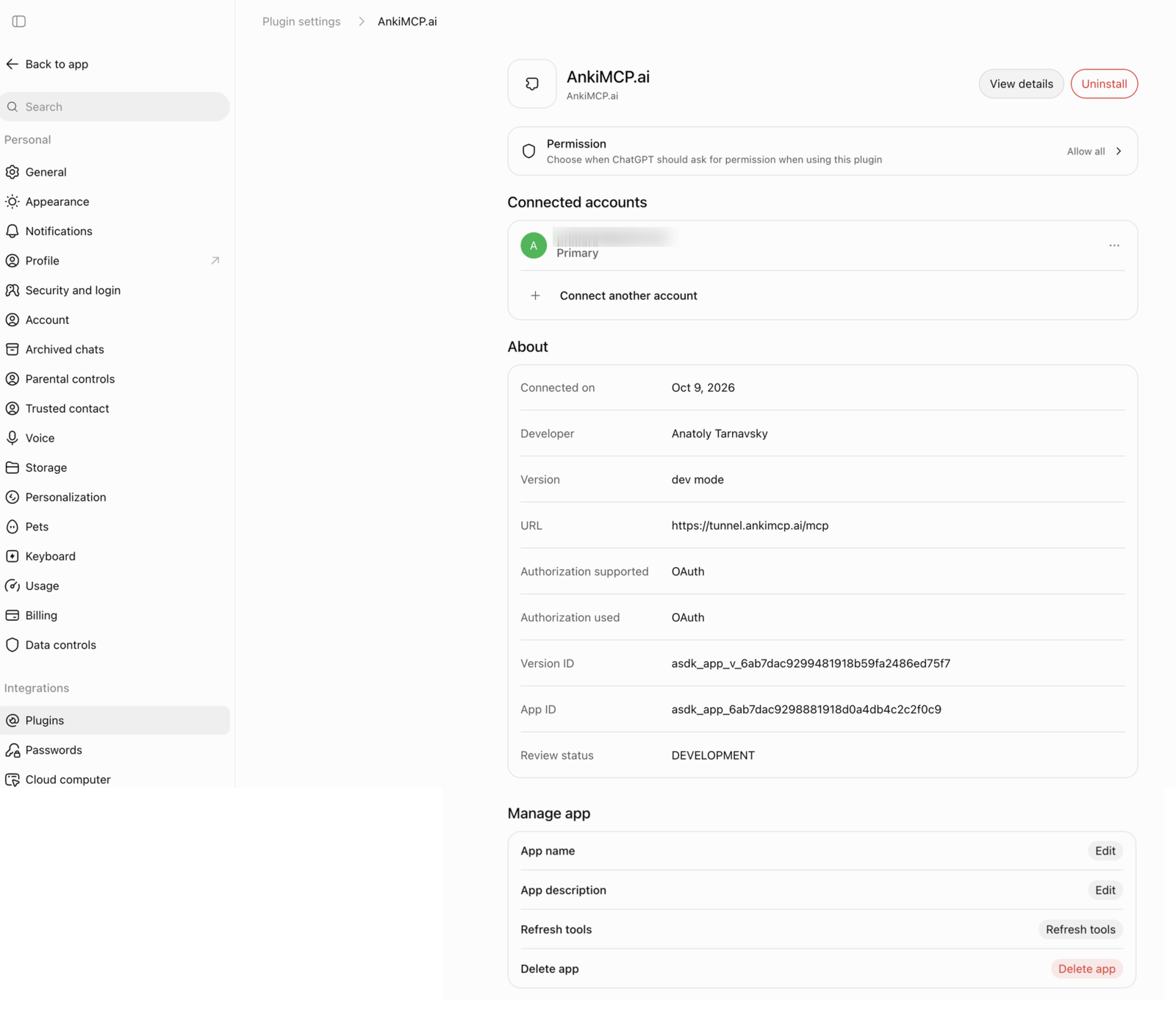
ChatGPT. Open Settings → Plugins, click AnkiMCP.ai, scroll to Manage app, and click Refresh tools.
Desktop clients. Claude Desktop, Claude Code, Cursor, Cline, and Zed fetch the tool list when they start, so quit the client fully and open it again. If a client keeps an old list, switch the AnkiMCP server off and on in its MCP settings.
After the refresh, ask your AI to list your Anki decks once. If that works, the new tools are in use.
Note edits succeed but the note doesn’t change
Symptom: You ask your AI to edit a note. It reports “done,” but the note doesn’t change. No error appears.
This happens when the note is open in Anki’s Browse window. You can’t update a note while you’re viewing or selecting it there. This is an Anki Browse-window limitation, not an AnkiMCP bug, and it affects both the add-on and AnkiConnect.
Fix: Before you ask your AI to edit a note, deselect or close it in Anki:
- Close Anki’s Browse window, or press Escape to deselect the note, or click a different note.
- Ask your AI to make the update.
- Open Browse again to confirm the change saved.
The AnkiConnect documentation records the same rule: “You must not be viewing the note that you are updating on your Anki browser, otherwise the fields will not update.” See AnkiConnect issue #82 for the original report. It applies to the add-on too, because the limit comes from Anki itself.
We can’t auto-fix this. There’s no reliable way to detect a viewed note, deselect it for you, or return an error when the update is blocked. For now, deselecting the note yourself is the dependable solution.
The first time you start the add-on, it downloads something
Symptom: You install the AnkiMCP add-on, restart Anki, and a small AnkiMCP Server - Setup window appears saying it’s downloading pydantic_core. Or that download fails and the server doesn’t start.
This is expected, and it happens once. On first run the add-on downloads one component, pydantic_core (about 2 MB), from PyPI, the standard Python package index. It can’t be shipped inside the add-on: pydantic_core is compiled separately for Windows, macOS, and Linux, and an Anki add-on is a single file that has to work on all of them. So the add-on fetches the one build that matches your computer and keeps it. Later launches download nothing and show no window.
You may occasionally see a second, equally brief download named rpds. Anki normally supplies that one itself, so it only appears if your Anki build doesn’t.
If the download fails, the add-on shows an error and the server won’t start. Fix the network path, then restart Anki — it retries automatically on every launch, so there’s nothing to reinstall.
- Check you’re online, then restart Anki.
- On a work, school, or hospital network? A proxy or firewall may block the package index. Ask for
pypi.organdfiles.pythonhosted.orgto be allowed, or start Anki once on an unfiltered connection — home Wi-Fi or a phone hotspot — so the one-time download can complete. After that, the blocked network is fine. - VPN or antivirus in the way? Turn it off briefly, restart Anki, and let the download finish.
Still stuck?
If none of these fixes work, you have a few options:
- Read the Getting Help guide for more support.
- Ask in the community forum.
- Report it on GitHub issues.
Disclaimer: “Anki” is a registered trademark of Ankitects Pty Ltd. AnkiMCP is an independent, community-built project and is not affiliated with, endorsed by, or sponsored by Ankitects. MCP is an open standard originated by Anthropic; AnkiMCP is likewise not affiliated with or endorsed by Anthropic.